Running an event with EzyEvents
What your team does, from the first message to the final results.
- 1
Get access
EzyEvents is invite only. Message us on WhatsApp. We set up your organization and send you an invite link. You sign in with Google, or set an email and password.
Message us on WhatsApp - 2
Invite your team
Each person gets an invite link with a role:
- Owner: everything, including the team and the data settings.
- Host: runs the games and the big screen.
- Help desk: finds and fixes guests on the day.
Send the link on WhatsApp. It works once and expires after 7 days.
- 3
Set up the event and the big screen
Name, date and venue. Your logo, a background picture and your sponsors on the big screen. Your consent text, and how long guest data is kept: 30 days, 90 days, 6 months or 1 year.
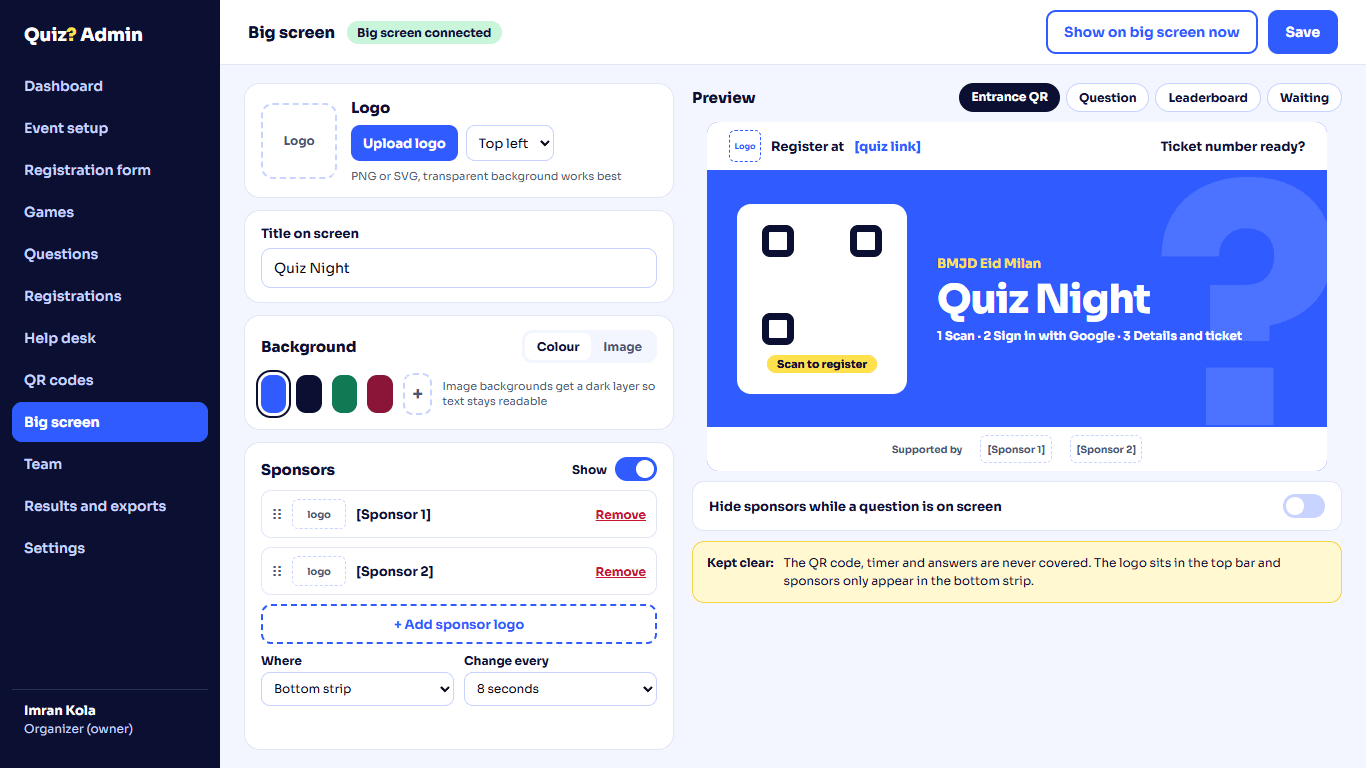
Big screen settings, with a preview. - 4
Build the sign-up form
Start with name, mobile, age, gender and ticket number. Add your own fields: text, number, phone, email, dropdown, choices, checkbox or date.
Choose how guests sign in: Google only, or also with one or two fields you pick, like mobile and ticket number. Import your ticket list so only real tickets can register.
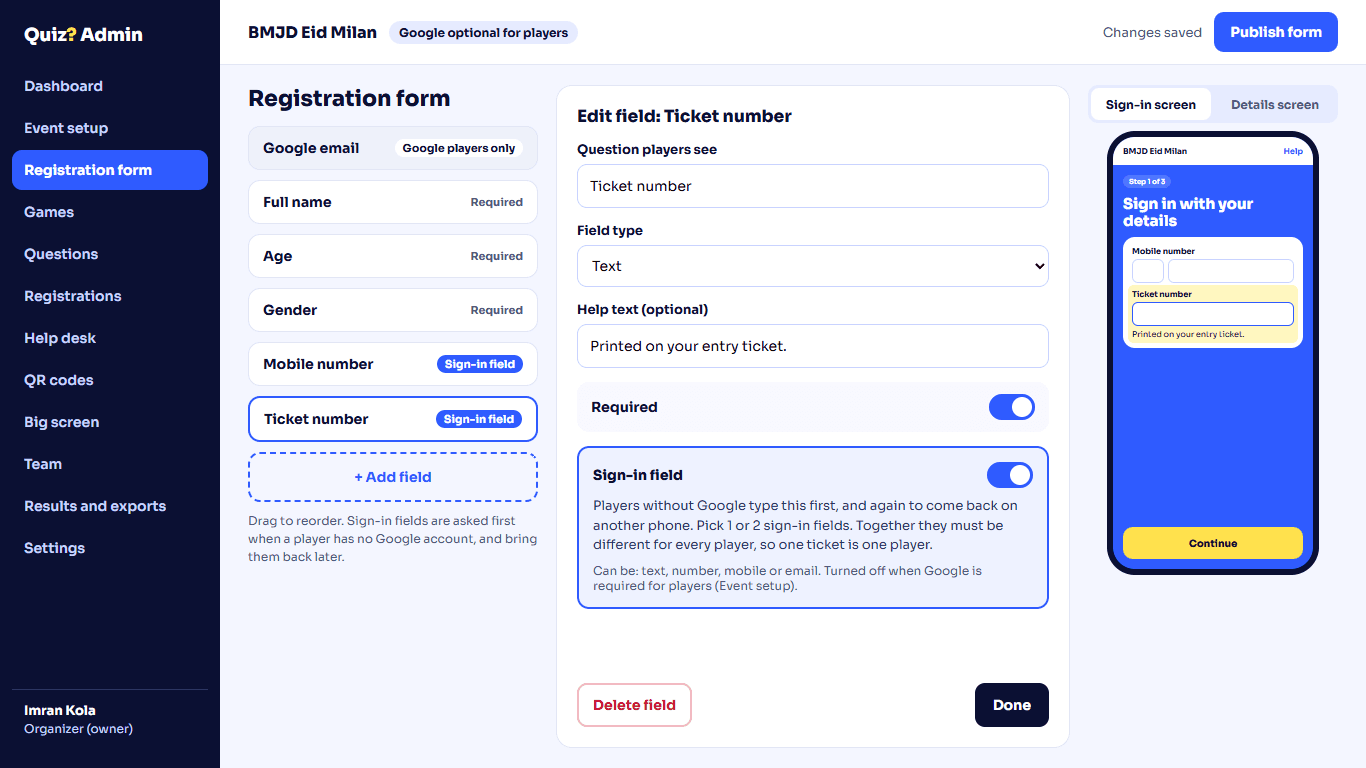
The form builder, with the phone preview. - 5
Add games and questions
Turn on the games you want. Write questions in any of the 19 types, with pictures, audio and video, or import them from a spreadsheet.
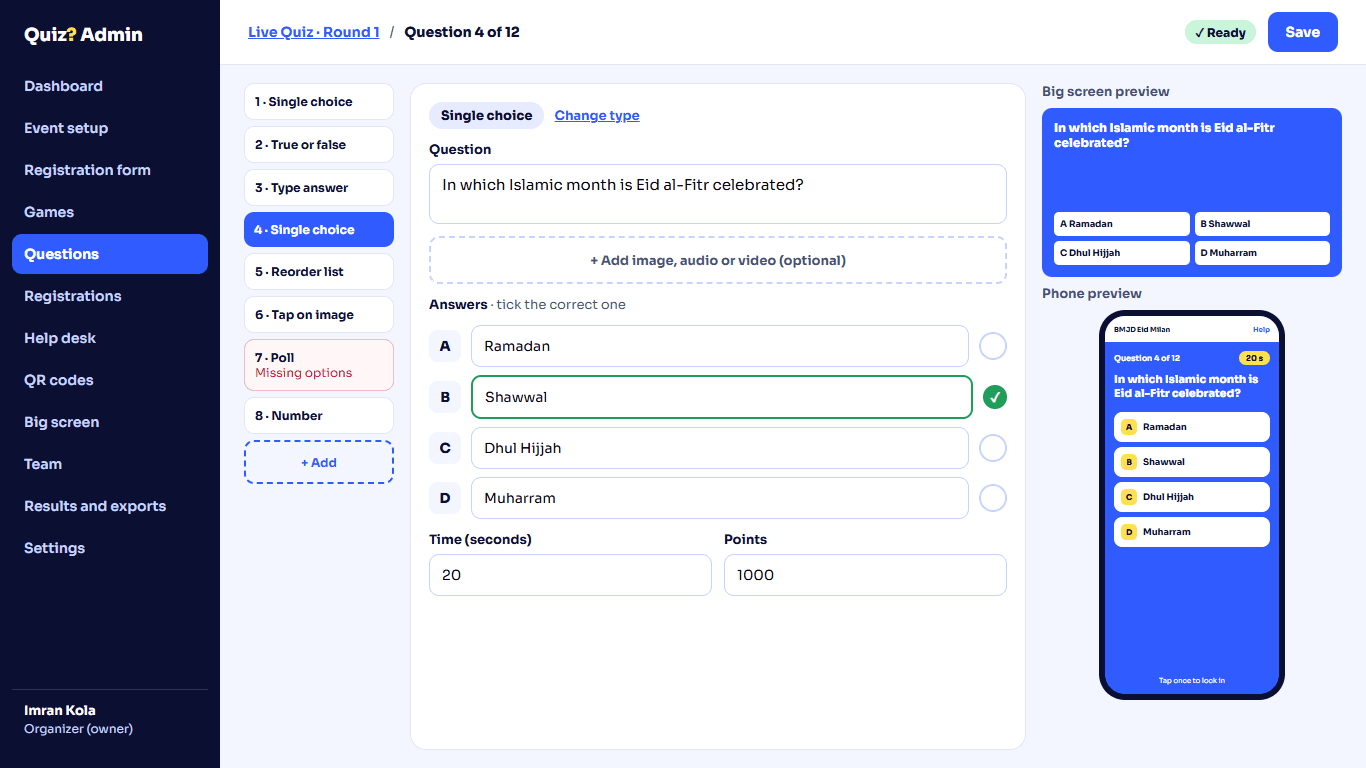
The question editor. - 6
Rehearse in test mode
Run every game before guests arrive. Real guests can't join while test mode is on, and test results are cleared when you finish.
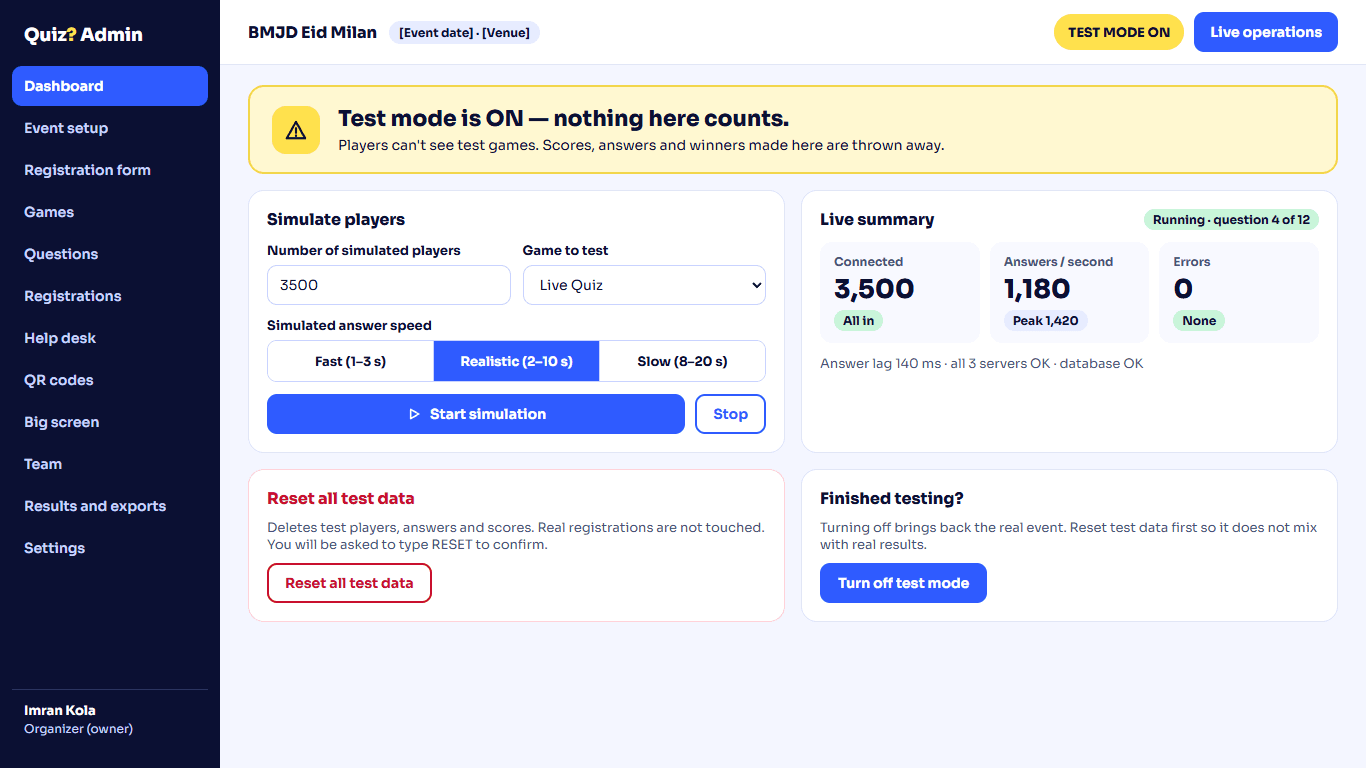
Test mode. - 7
Print the QR codes
Each game has its own QR code and game code. Show them on the big screen, download them, or print a sheet for the entrance and the tables.
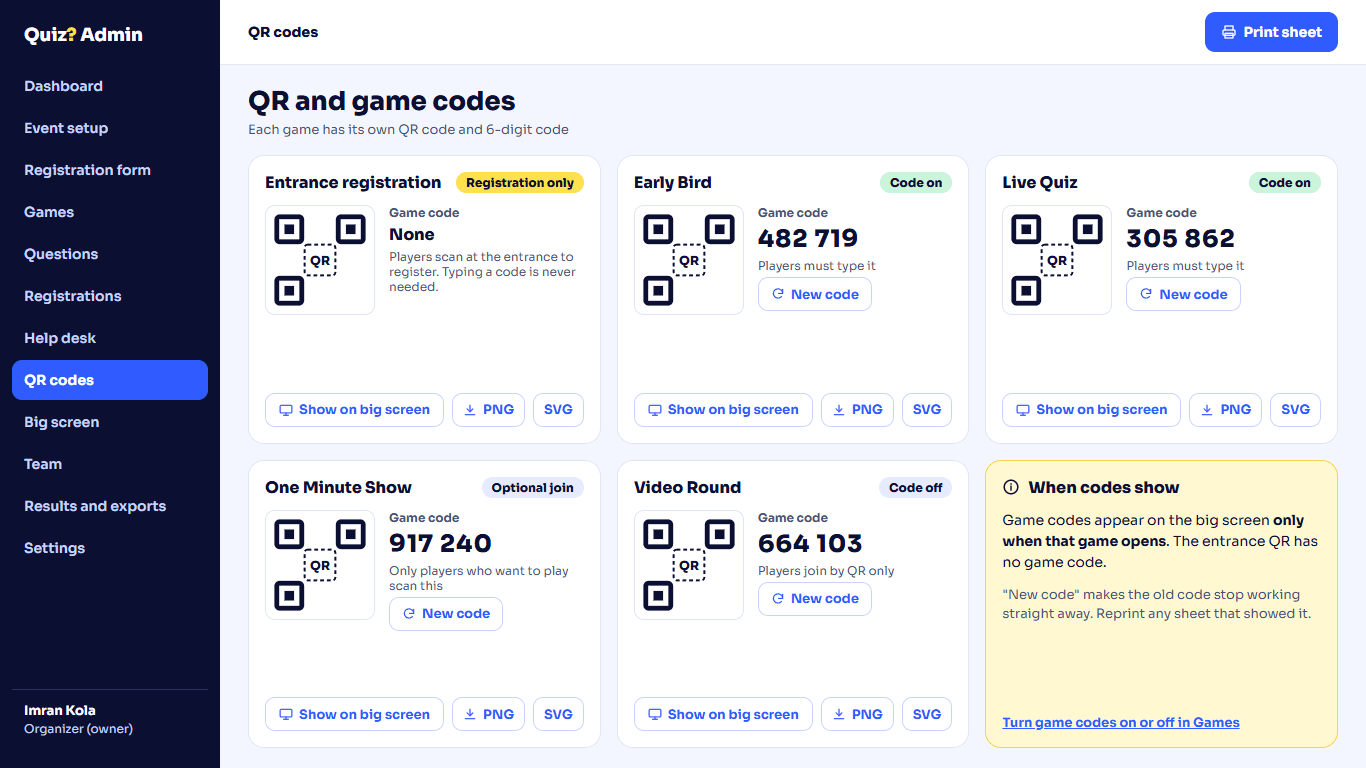
QR codes and game codes. - 8
On the day: the help desk
Find a guest by name, ticket, mobile or player code. Fix their details or ticket number, merge a double sign-up, add someone by hand, or block a guest. Guests can also tap Help on their phone to send a request to the desk.
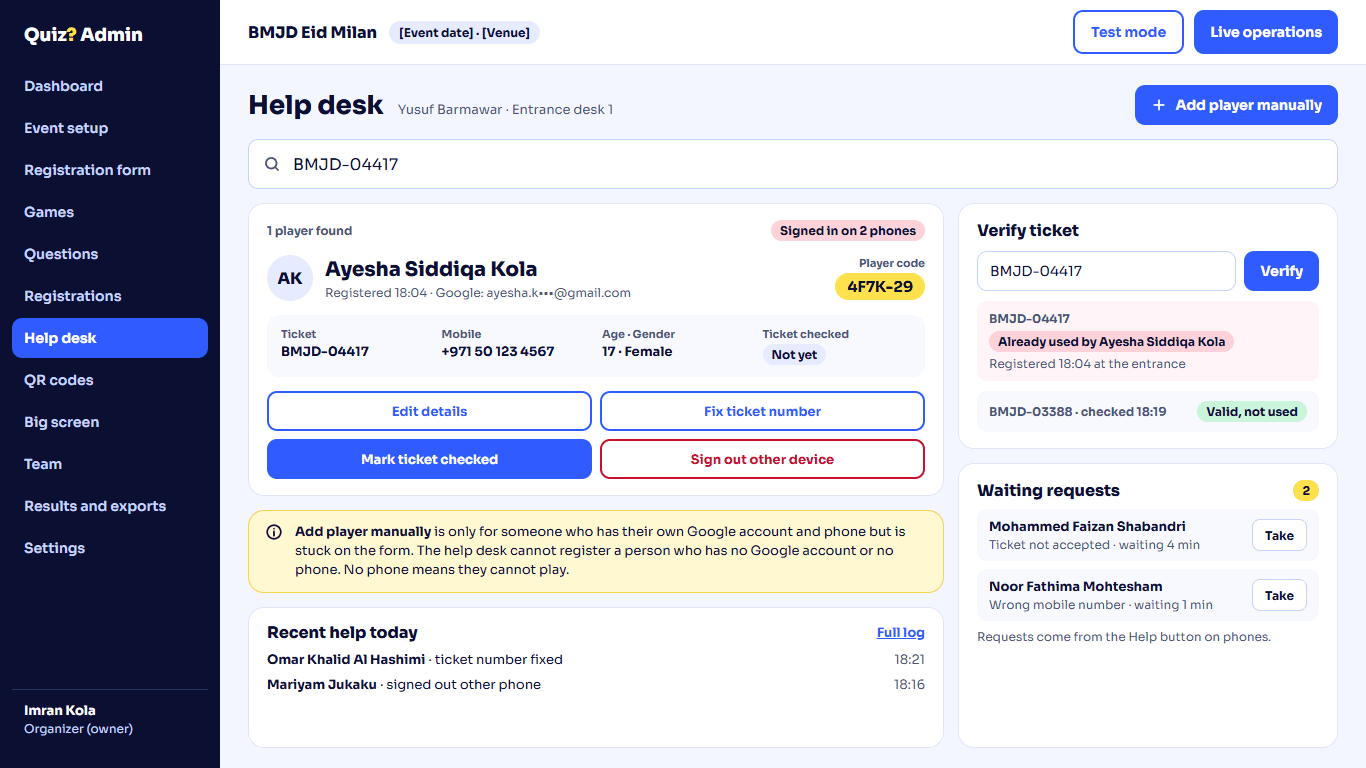
The help desk. - 9
On the day: live operations
One page shows how many phones are connected, how fast answers are coming in, the delay, and any warnings, while the game runs. You can also hide or edit a guest's name before it shows on the big screen.
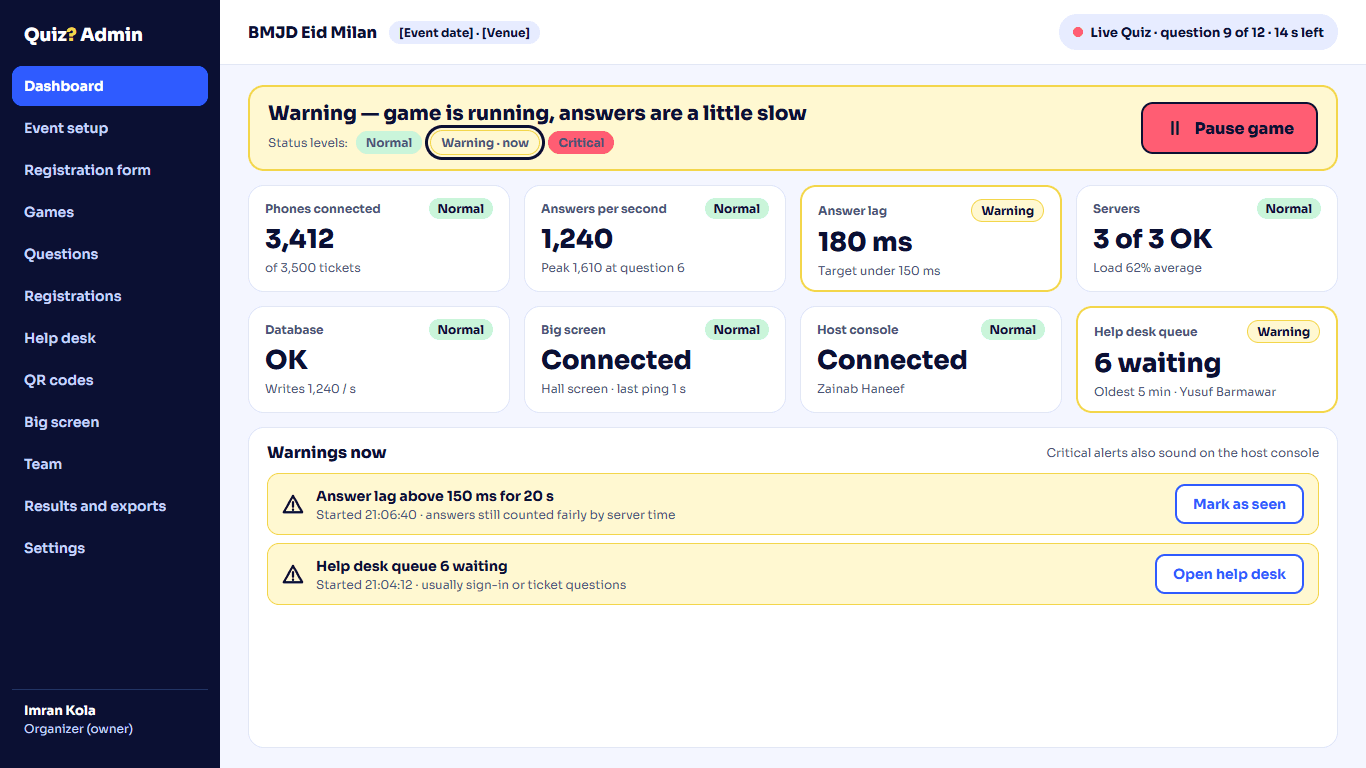
Live operations. - 10
After the event
- Leaderboards for each game, downloadable as a spreadsheet (CSV).
- A printable winners sheet.
- Each guest's answers, question by question, for any dispute.
- Percent correct and answer times for each question.
- A log of every change that affected results, and who made it.
- Guest data is deleted after the period you chose.
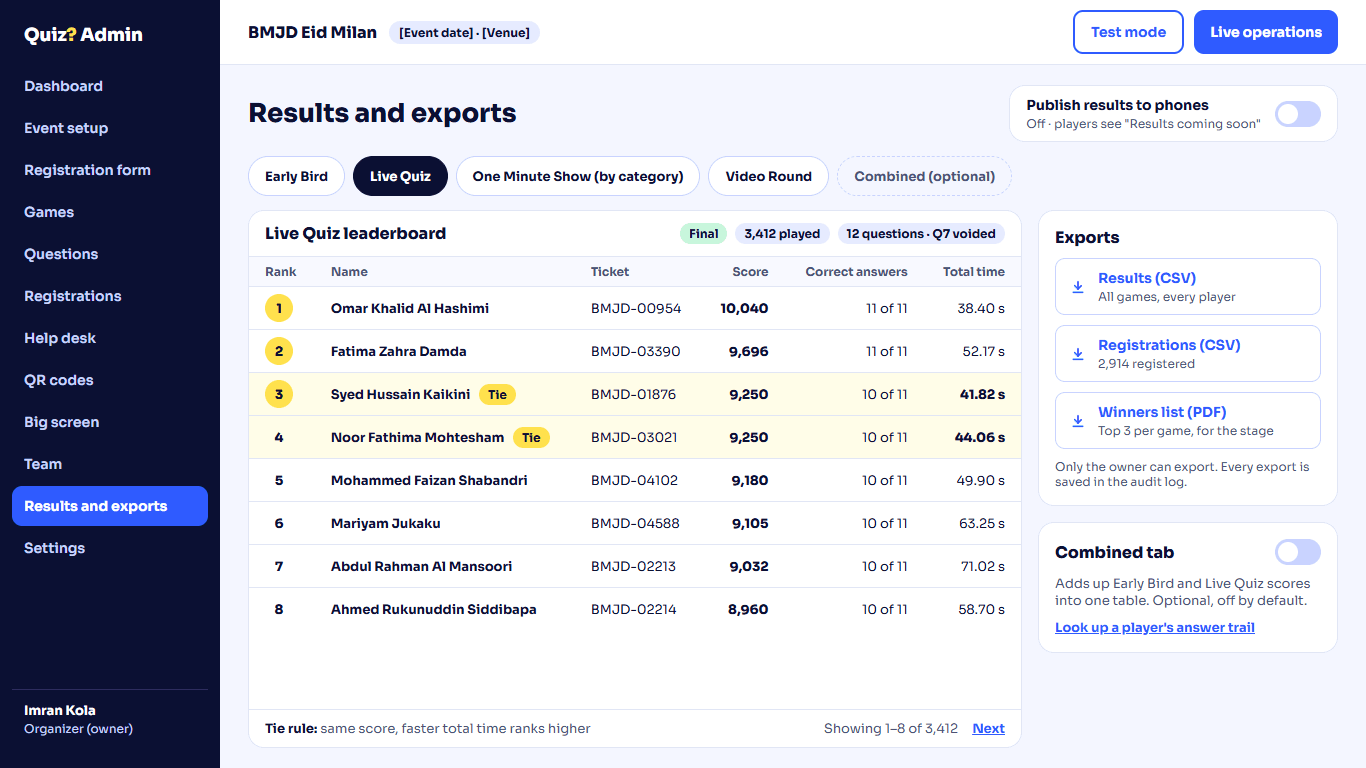
Results and exports.
Questions organizers ask
Do guests need to install an app?
No. It opens in the phone's browser. If they open the link inside WhatsApp or Instagram, the page shows how to open it in Chrome or Safari, because Google sign-in doesn't work inside those apps.
Do guests need a Google account?
Your choice, per event. Without Google, guests sign in with the fields you pick, like mobile and ticket number, and use the same details to sign in again on another phone.
What if a guest's phone loses connection?
The phone shows "Reconnecting…" and goes back to the current question when it's back. Answers already sent are kept.
Can anyone see the right answer early?
No. Answers are checked only on our server, and phones get the right answer only at the reveal.
What if the host's laptop stops working?
A second laptop signed in as host can take over the game.
What if YouTube blocks a clip?
The Test button shows it before the show. Put a copy of the clip on the big-screen computer and it plays from there.
Can a guest play without a phone?
No. Each guest plays on their own phone.
Who sees guest data, and for how long?
Only your team. It is deleted after the period you choose, and a guest can ask the help desk to delete theirs sooner.
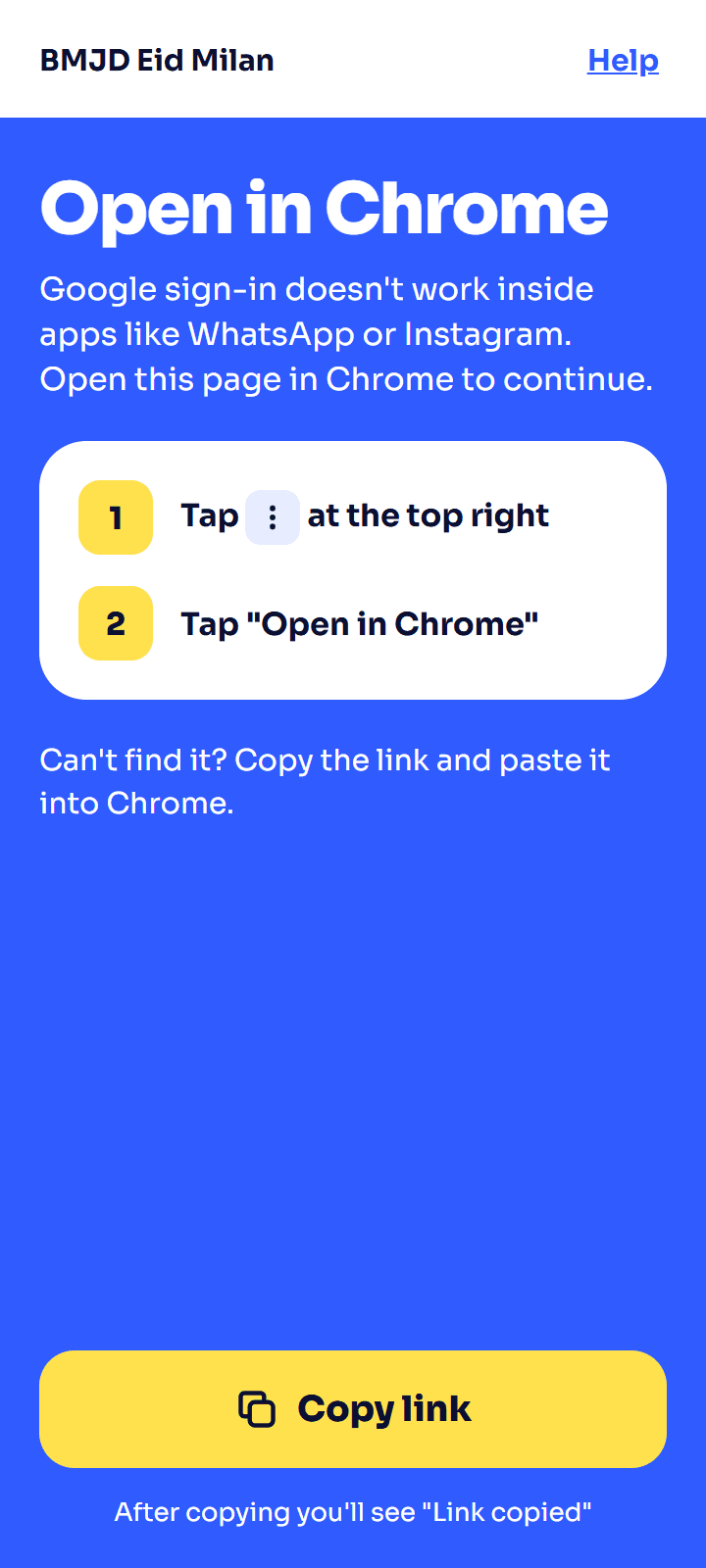
Opened inside another app
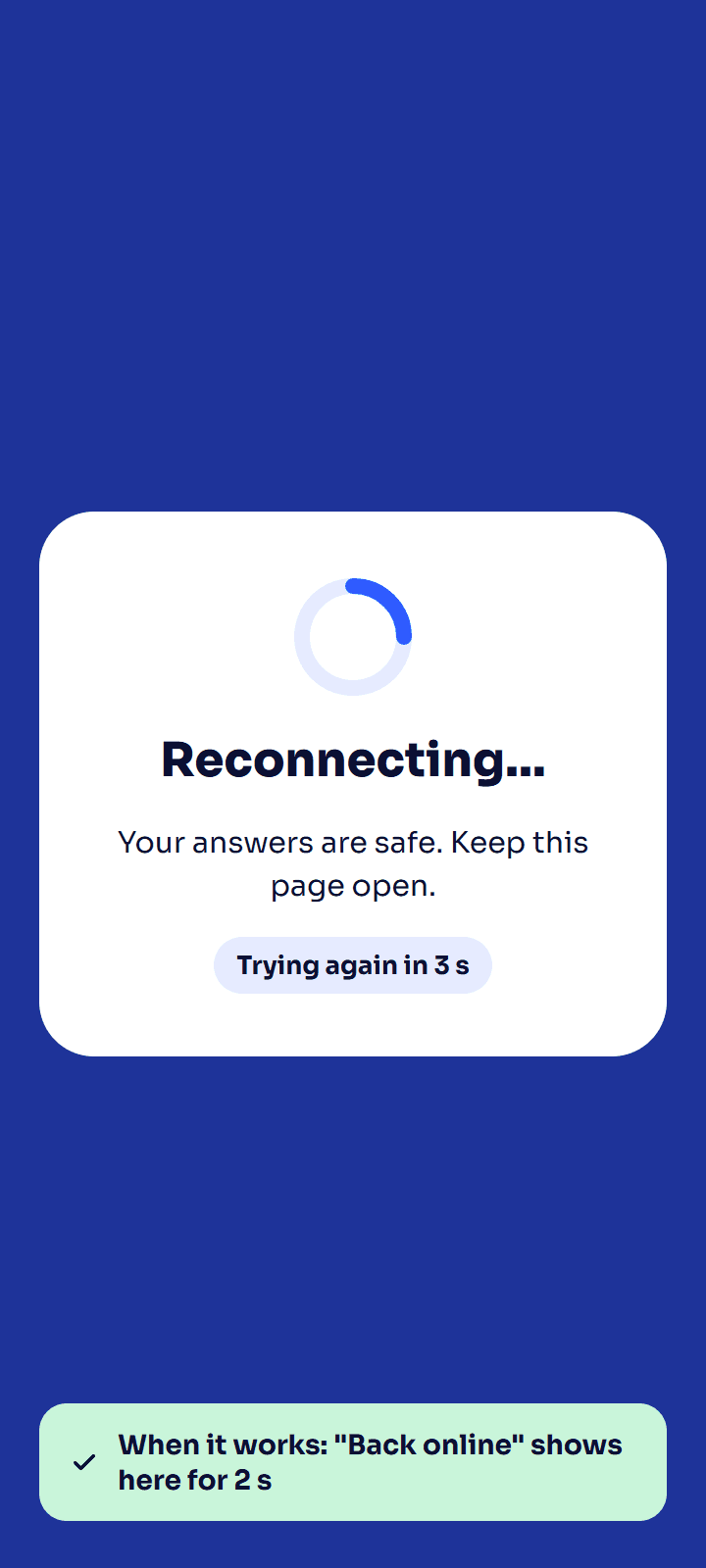
Connection lost